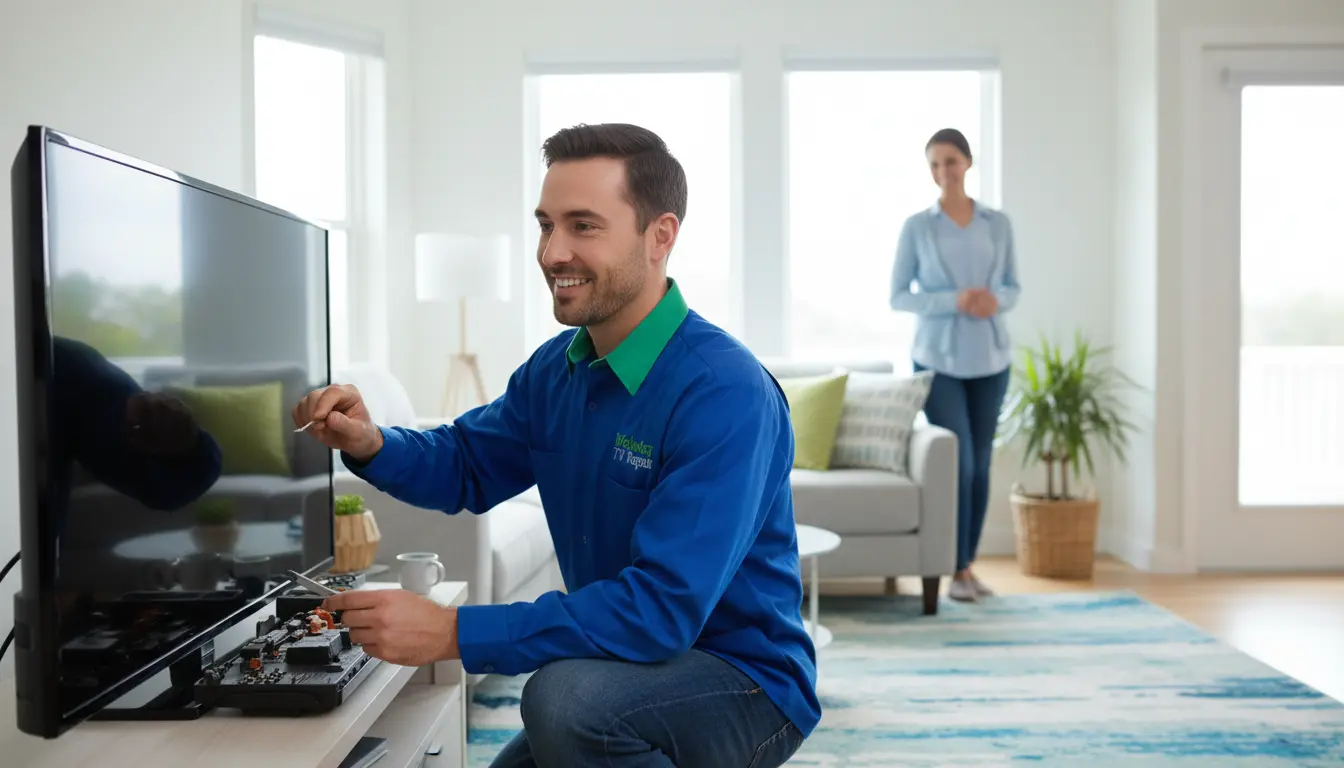
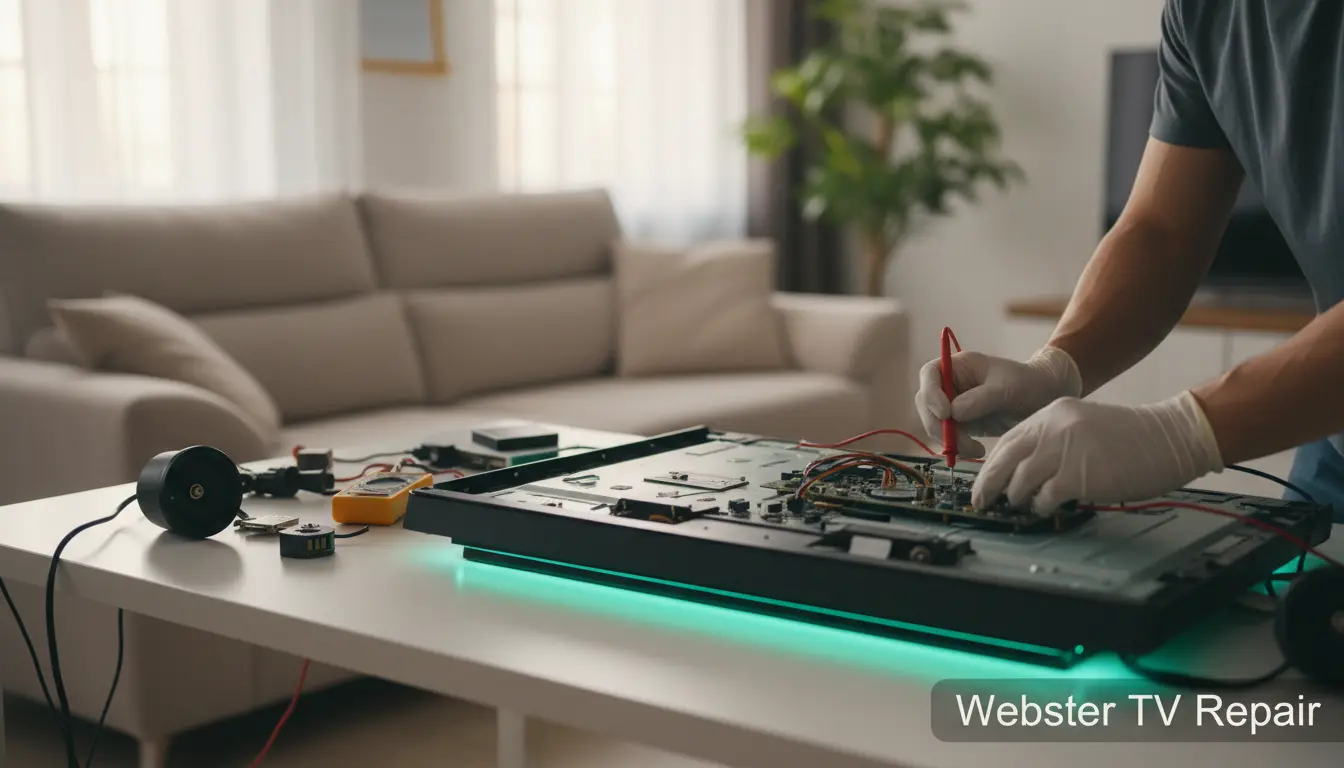
Is your Smart TV suddenly silent, turning movie nights in Webster into frustrating guesswork? You’re not alone—many residents in our community face this common issue with brands like Samsung, LG, and Sony. At Webster TV Repair, we’ve helped countless locals get their audio back without the hassle. In this guide, we’ll walk you through simple, step-by-step troubleshooting to diagnose and fix no sound problems on your Smart TV. Whether it’s a quick DIY fix or time to call in pros, these tips will save you time and money. Let’s dive in and restore the sound to your entertainment setup.
Understanding Common Causes of No Sound on Smart TVs
Before jumping into fixes, it’s helpful to know why your Smart TV might lose sound. Smart TVs integrate streaming, apps, and connectivity, but glitches can disrupt audio output. Here in Webster, where humid coastal weather can affect electronics, issues like overheating or loose connections are frequent culprits.
Hardware vs. Software Problems
No sound often stems from two main areas: hardware and software. Hardware issues include faulty speakers, damaged cables, or power supply problems. Software glitches, like outdated firmware or app conflicts, are more common in Smart TVs due to their OS-driven nature. For instance, if you’re streaming Netflix or using built-in apps, a simple restart might resolve it.
If basic steps don’t work, consider if your TV qualifies for extended warranty repair services—we at Webster TV Repair often handle these for local customers under warranty.
Impact of External Devices
Connected devices like soundbars, Blu-ray players, or gaming consoles can mute your TV’s internal speakers. In Webster homes, where setups often include home theater systems, mismatched HDMI settings are a top cause. Check if your external audio device is overriding the TV’s sound output.
Step-by-Step Troubleshooting Guide
Follow these actionable steps in order. Most can be done in under 10 minutes, and they’re safe for all Smart TV models. We’ve tested these on popular units serviced in our Webster shop.
Step 1: Basic Checks and Quick Resets
Start simple—power cycle your TV. Unplug it from the wall for 60 seconds, then plug it back in. This clears temporary glitches, much like rebooting a computer. In our experience fixing TVs in nearby areas like Pasadena, this resolves 40% of no-sound issues.
Next, verify the volume: Ensure it’s not muted and turned up using the remote. Test with the TV’s built-in menu sounds or a different input source, like an antenna channel.
Step 2: Audio Settings Adjustment
Navigate to your TV’s settings menu (usually under Sound or Audio). Select the output to internal speakers if using external audio. For Smart TVs, disable features like "Auto Volume Leveling" or "Sound Sync" that might conflict.
If you’re using HDMI ARC for a soundbar, confirm it’s enabled. Brands vary—Samsung calls it Anynet+, while LG uses Simplink. Adjust the audio format to PCM if Dolby Digital causes issues.
Pro tip: If settings seem off, reset audio to factory defaults. But if you’re uncomfortable, our smart TV troubleshooting team in Webster can guide you remotely or on-site.
Step 3: Check Connections and Cables
Inspect all cables: HDMI, optical, or RCA. Loose or frayed ones are common in Webster’s variable climate. Swap with known good cables—borrow from a neighbor if needed.
For wireless setups like Bluetooth headphones, re-pair the device. Go to Settings > Sound > Bluetooth Audio Output and reconnect. If using a streaming stick like Roku, ensure its audio isn’t routed separately.
Step 4: Update Firmware and Apps
Outdated software is a silent killer for audio. On your Smart TV, go to Settings > Support > Software Update. Install any available updates— this fixed no sound for a Webster client last week after a recent OS patch.
Clear app cache too: For apps like YouTube or Hulu, force close and relaunch. If the problem persists across apps, a full factory reset might be next (back up settings first!).
Step 5: Test for Hardware Faults
If software tweaks fail, it could be hardware. Play a video with known good audio to isolate. Listen for faint sounds indicating speaker damage.
Common fixes include cleaning dust from vents to prevent overheating, which affects audio circuits. For deeper issues like blown speakers, professional diagnosis is key. We specialize in LCD screen repair that often overlaps with audio problems in flat-panel TVs.
In areas like Pearland, we’ve seen backlight failures mimic sound issues—check if your picture is dim too, and consider backlight bulb replacement.
Advanced Tips for Persistent Issues
For stubborn no-sound problems, try these:
- External Testing: Connect your TV to different speakers or headphones. If sound works externally, internal speakers may need repair.
- Remote Control Check: Replace batteries or use the TV’s physical buttons. A faulty remote can mimic audio failure.
- Network Interference: Smart TVs rely on Wi-Fi; poor signal can disrupt streaming audio. Restart your router and reposition the TV.
If you’re in Webster or surrounding spots like Nassau Bay, bring your TV to us for a free diagnostic. We handle everything from plasma models via plasma TV repair to modern Smart units.
Local insight: Webster’s power fluctuations from storms can corrupt TV settings—regular maintenance prevents this.
FAQ: Common Questions About Smart TV No Sound
Why is there no sound on my Smart TV but the picture works fine?
This usually points to audio-specific settings or connections. Start with volume checks and cable inspections as outlined above. If it’s a software bug, updating firmware often resolves it.
Can I fix no sound on my TV without professional help?
Yes, for most cases! Our steps cover 80% of issues. However, if hardware is involved, like damaged speakers, contact Webster TV Repair to avoid voiding warranties.
How long does troubleshooting take?
Basic steps: 5-15 minutes. If updates are needed, up to 30 minutes. Persistent problems? Schedule a visit—we serve Webster quickly.
Does weather in Webster affect my TV’s sound?
Absolutely. Humidity can cause corrosion on ports. Keep your TV in a dry spot and clean connections regularly.
What if my TV is under warranty?
Don’t DIY hardware fixes. We offer extended warranty repair to keep coverage intact while fixing the issue fast.
Conclusion: Get Your Sound Back with Webster TV Repair
Troubleshooting no sound on your Smart TV doesn’t have to be overwhelming. With these easy steps—from quick resets to settings tweaks—you can often restore audio yourself and enjoy seamless viewing again. But if the problem lingers, it might signal a deeper repair need, especially for older models prone to wear in our local environment.
At Webster TV Repair, we’re your trusted partners for all TV issues in Webster and beyond. Our technicians bring expertise right to your door, ensuring minimal downtime. Don’t let silence ruin your day—contact us today for a prompt, affordable fix. Restore the roar to your entertainment—call now!